Repositories
Last updated: June 23, 2026
The Repositories page is your home base for managing every repository you've connected to Aisle for analysis. From here you can add new repositories, turn on the analyzer, check analysis status, and remove anything you no longer want covered.
Accessing the page
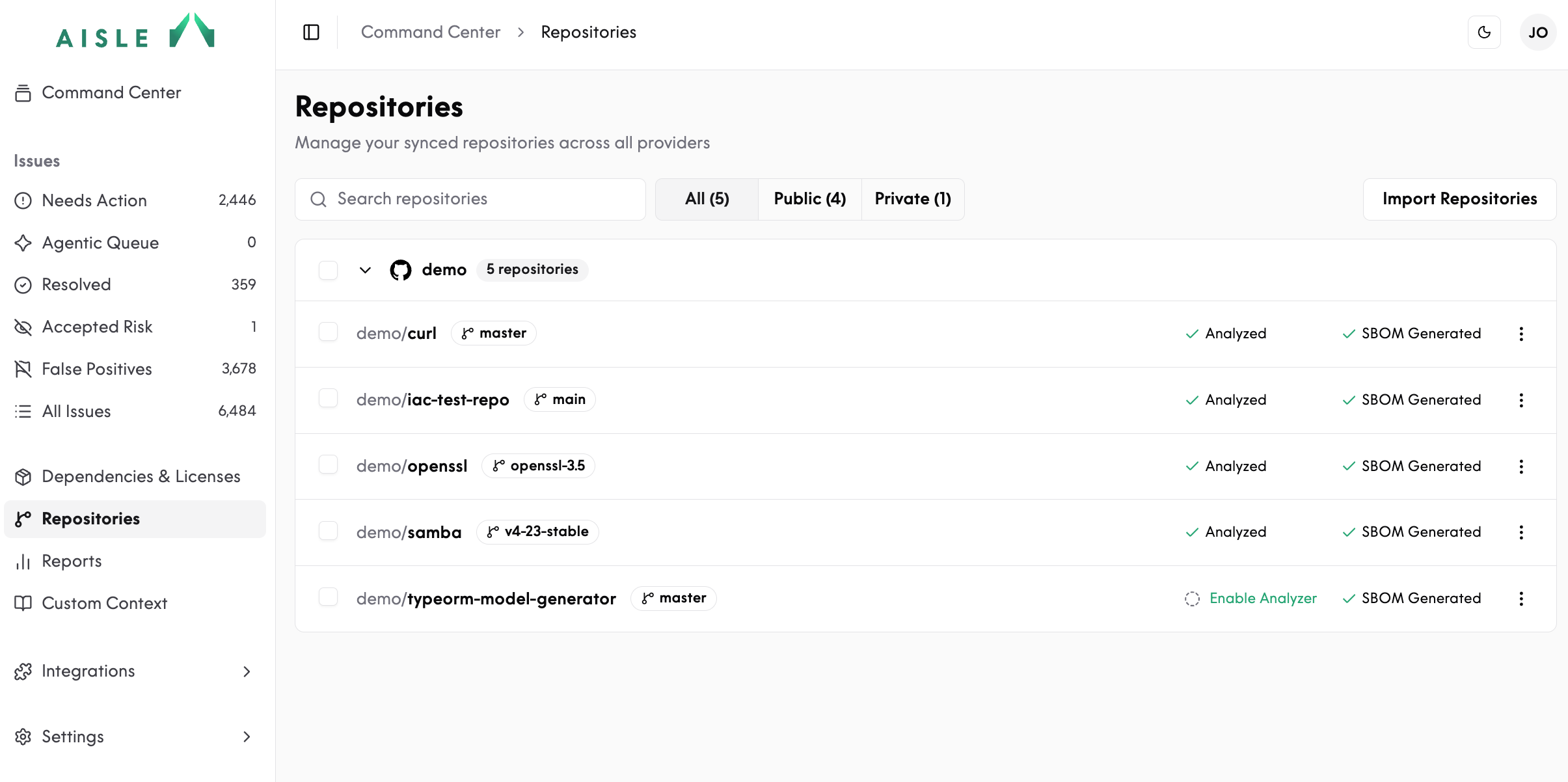
Select Repositories in the left sidebar. The list shows every repository imported from your version control connections. You can filter by All, Public, or Private, and search by name.
Each repository in the list
Every repository in the list shows its name and whether it's public or private. Click any one to open its detail view (described below), where you'll find its full analysis status, detected environment, dependencies, context, and history.
You can also act on a repository directly from the list. The controls you see depend on your role:
Open Git — open the repository in your provider's web interface.
View Issues Board — jump to the Issues Board, pre-filtered to this repository.
Add New Branch — if your plan supports more than one cloned branch per repository, add additional branches to analyze.
Retry Import — re-run an import that didn't complete.
Delete Repository — remove the repository from Aisle (Admin only).
To work on several repositories at once, select them and use the bulk actions in the panel that appears: Enable Analyzer and Delete Repositories.
Each repository in the list
Every repository in the list shows its name and whether it's public or private. Click any one to open its detail view (described below), where you'll find its full analysis status, detected environment, dependencies, context, and history.
You can also act on a repository directly from the list. The controls you see depend on your role:
Open Git — open the repository in your provider's web interface.
View Issues Board — jump to the Issues Board, pre-filtered to this repository.
Add New Branch — if your plan supports more than one cloned branch per repository, add additional branches to analyze.
Retry Import — re-run an import that didn't complete.
Delete Repository — remove the repository from Aisle (Admin only).
To work on several repositories at once, select them and use the bulk actions in the panel that appears: Enable Analyzer and Delete Repositories.
Detail view
Click a repository to open its detail view. Up to five tabs are available, depending on your configuration:
Tab | What it shows |
|---|---|
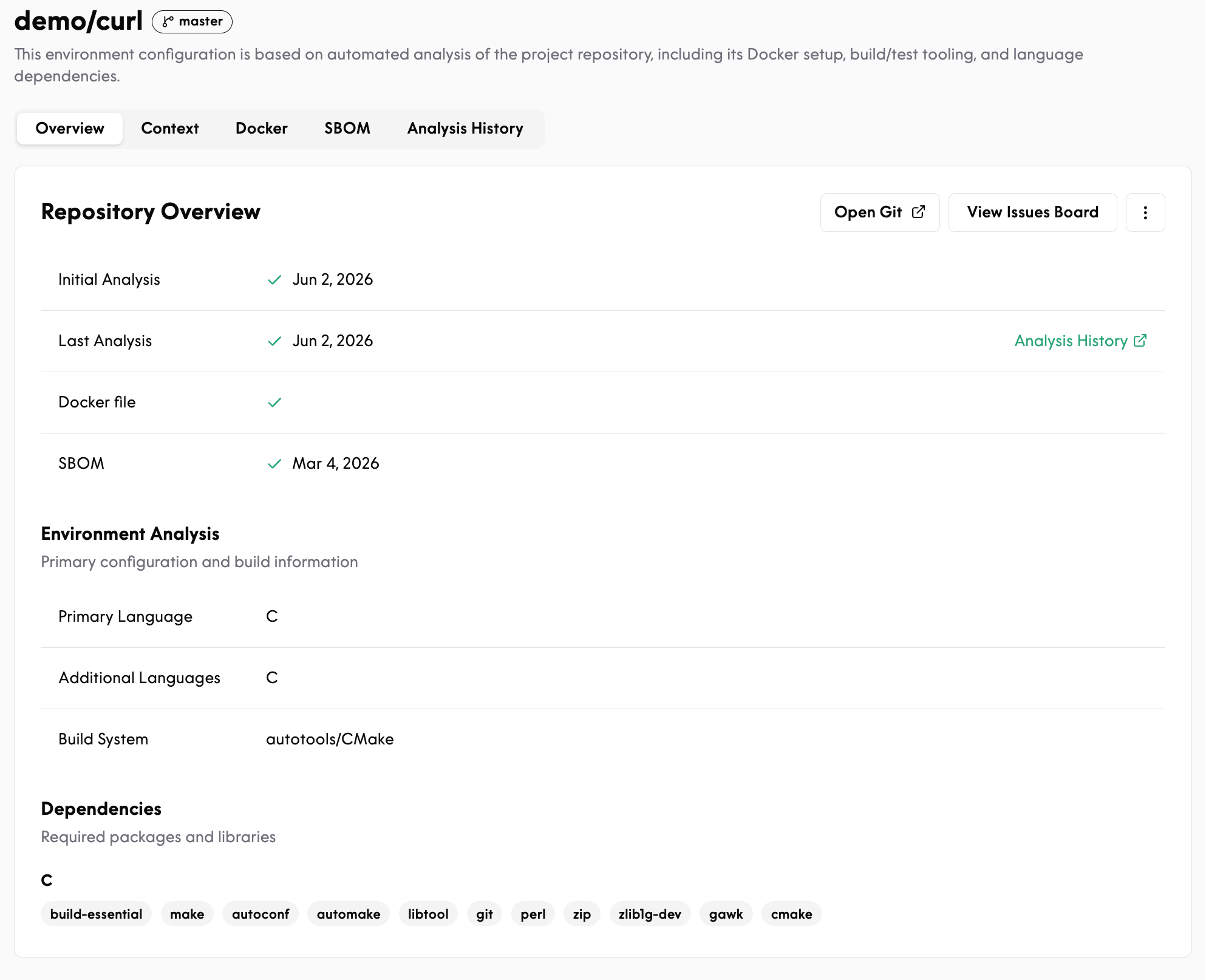
Overview | Analysis status (Initial Analysis, Last Analysis, Dockerfile, and latest SBOM), Environment Analysis (primary and additional languages, build system), and Dependencies grouped by language. |
Context | Auto-generated repository context. Edit it through Edit Repository Context. See Setting up Context in Aisle. |
Docker | A generated Dockerfile (downloadable) and the agent interface for container-based analysis. |
SBOM | Per-repository SBOM generation (SPDX v2.3 or CycloneDX v1.4–v1.7; JSON or XML; with email delivery). |
Analysis History | Every analysis event — Initial Analysis or a commit SHA — with its timestamp. |
The Context, Docker, SBOM, and Analysis History tabs depend on your plan and permissions. If you don't see one, it isn't enabled for your account — reach out and we'll help you turn it on.
The page header throughout the detail view shows the repository name and the branch being analyzed.
Overview
The Overview tab is a snapshot of where the repository stands. At the top you'll find:
the dates of the Initial Analysis and Last Analysis (with a link straight to the full Analysis History),
whether a Dockerfile has been generated,
and the date of the most recent SBOM.
Below that, Environment Analysis shows what Aisle detected about the repository: the primary language, any additional languages, and the build system. Dependencies then lists the packages and libraries Aisle found, grouped by language.
Context
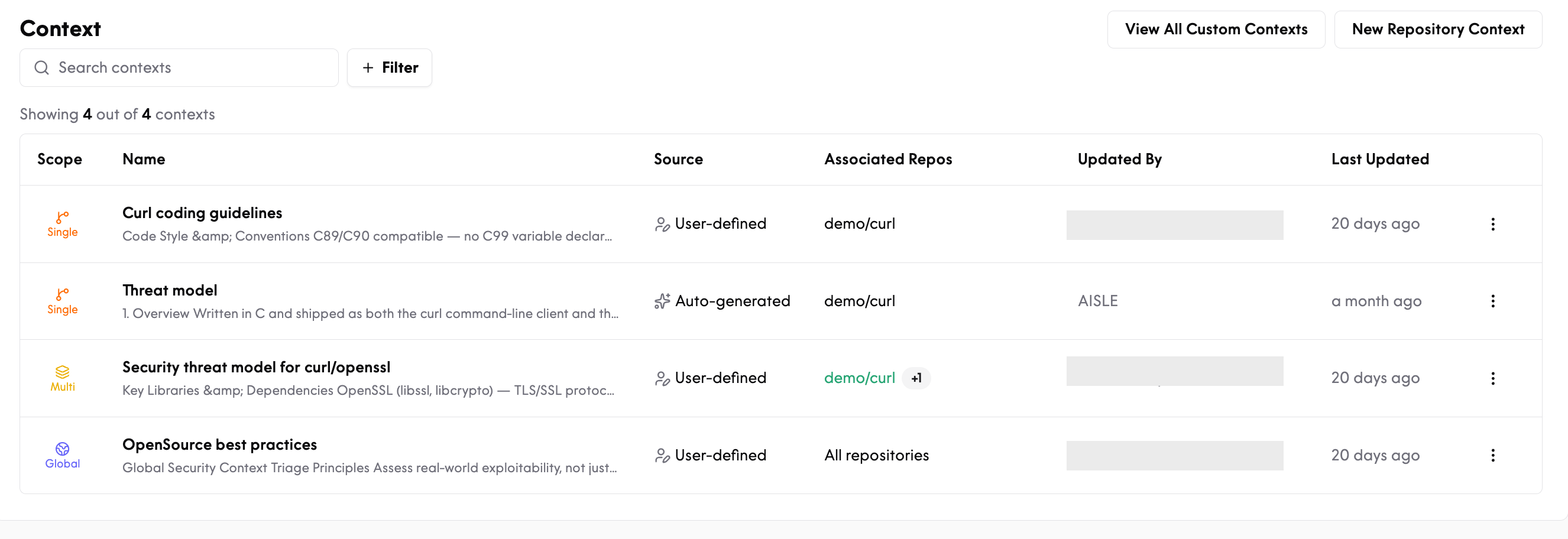
Context is the background you give Aisle about a repository so its analysis reflects how your code actually works — coding conventions, a threat model, security priorities, and so on. This tab lists every context entry that applies to the repository, with a search box and filters to narrow the list.
Each entry shows its Scope, Name (with a preview of the content), Source, the Associated Repos it applies to, who last updated it, and when. Scope tells you how widely the context applies:
Single — one repository.
Multi — a defined set of repositories.
Global — every repository in your organization.
The Source is either Auto-generated (created by Aisle, such as a generated threat model) or User-defined (created by your team). Use New Repository Context to add one, View All Custom Contexts to see everything across your organization, and the row menu to edit or remove an entry. For the full walkthrough, see Setting up Context in Aisle.
Docker
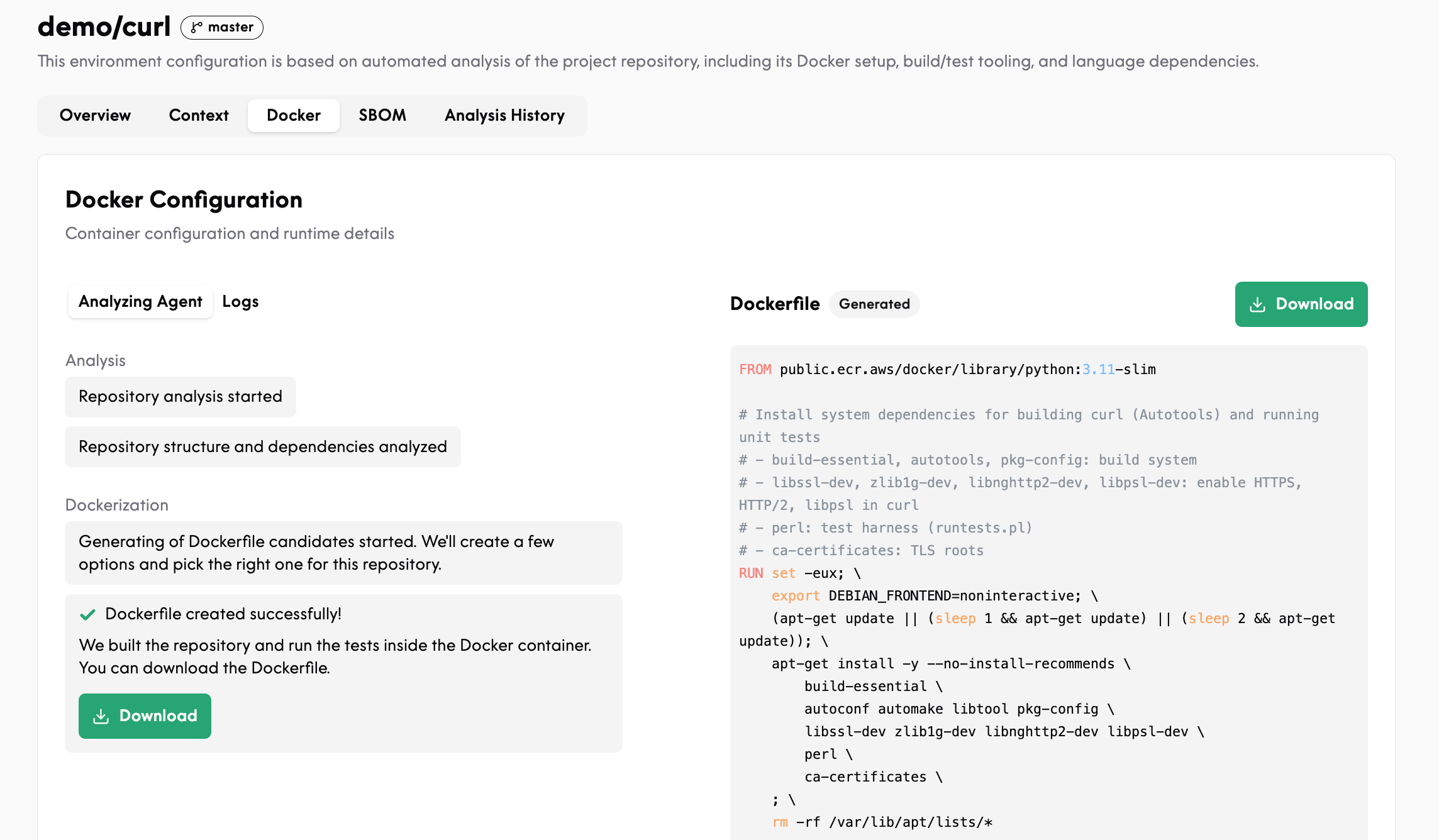
To analyze a repository safely, Aisle builds and runs it inside an isolated container. The Docker tab shows how that container was put together.
The Analyzing Agent view walks through what the agent did, step by step: it analyzes the repository structure and dependencies, generates a few Dockerfile candidates, then builds the repository and runs its tests inside the container to confirm the setup works. The Logs view gives you the underlying detail. On the right, the generated Dockerfile is shown in full, and you can Download it — handy if you want to reproduce Aisle's build environment yourself.
SBOM
The SBOM tab generates a Software Bill of Materials — a complete inventory of the components and dependencies in the repository, which many teams need for compliance and supply-chain reporting.
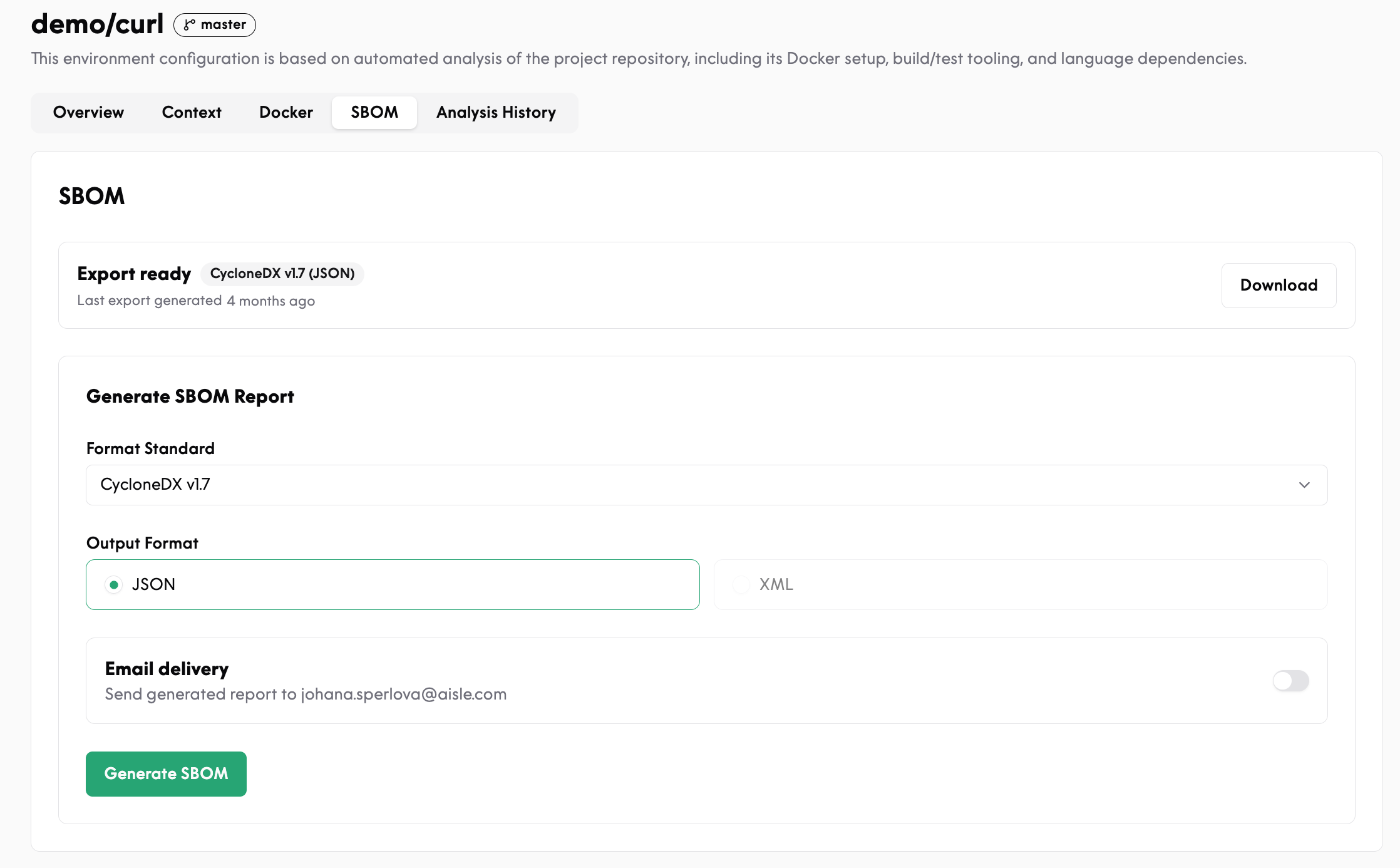
If an export already exists, an Export ready banner shows its format and when it was generated, with a Download button. To create a new one, use Generate SBOM Report: choose the Format Standard (SPDX or CycloneDX, including the version), the Output Format (JSON or XML), and optionally turn on Email delivery to have the finished report sent to your account email. Then select Generate SBOM.
Analysis History
This tab is the timeline of every analysis Aisle has run on the repository, so you can see how findings have changed over time. Each row lists the Commit that was analyzed — either the Initial Analysis or a specific commit — alongside the date and time it was Scanned.
Enabling the analyzer
The Aisle Analyzer is our AI-native SAST engine, and you enable it per repository — either from the row action or in bulk from the selection panel. Until you enable it, Aisle still ingests your dependencies, secrets, and any third-party scanner findings, but no first-party SAST analysis runs.
What to do next
After importing a repository, enable the analyzer and let the initial deep scan finish (typically anywhere from a few minutes to a few hours).
Review the generated Context on the repository and correct anything the analyzer got wrong before Aisle begins generating fix suggestions.
Set up organization-wide context in Setting up Context in Aisle.